SharedPreferences는 Flutter 앱에서 가볍고 간단한 데이터를 영구적으로 저장할 때 사용하는 도구입니다. 복잡한 데이터베이스는 필요 없고, 아주 기본적인 정보만 저장하고 싶을 때 최적의 선택지입니다.
- 개념: SharedPreferences는 앱의 개인 메모장과 같습니다. 간단한 '키-값' 쌍으로 데이터를 저장하고 불러옵니다.
- 예시: 'theme_mode': 'dark', 'user_name': '김철수'
- 핵심 기능: 저장된 데이터가 앱을 종료해도 사라지지 않고 영구적으로 유지됩니다. 이러한 데이터 영속성(Persistence)은 사용자 경험을 크게 향상시키는 중요한 요소입니다.
비동기(Asynchronous) 프로그래밍
SharedPreferences는 데이터를 스마트폰 저장소(디스크)에 쓰거나 읽는 작업을 합니다. 이러한 디스크 접근은 시간이 걸리는 작업이므로, 앱이 멈추지 않도록 비동기적으로 처리해야 합니다.
Null Safety와 기본값 설정
SharedPreferences에서 데이터를 불러올 때, 해당 키에 저장된 값이 없는 경우 null이 반환될 수 있습니다. null 값을 처리하지 않으면 앱이 비정상적으로 종료될 수 있습니다.
- 연산자(??) 사용하기
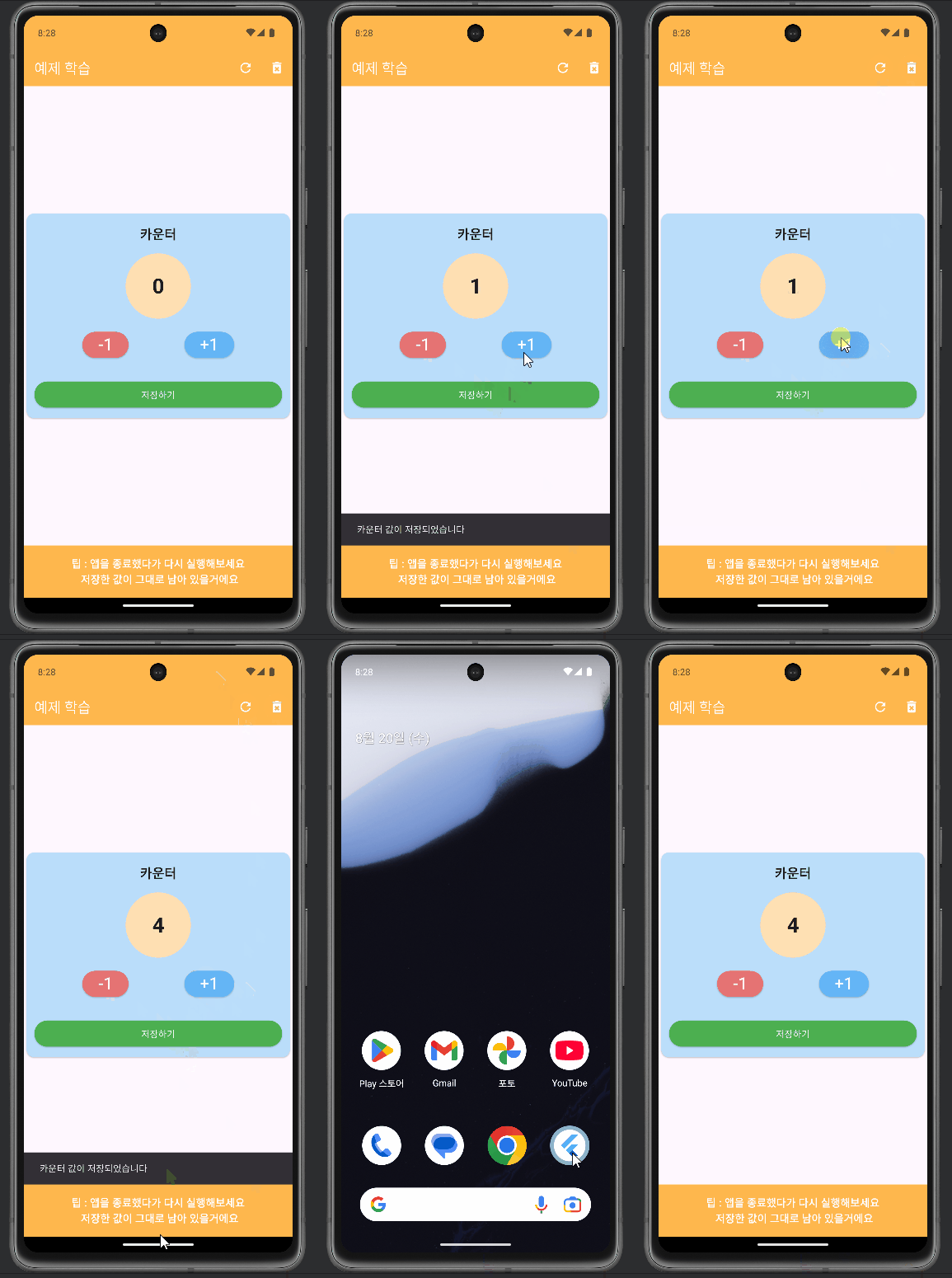
import 'package:flutter/material.dart';
import 'package:shared_preferences/shared_preferences.dart';

void main() {
  runApp(const MyApp());
}

class MyApp extends StatelessWidget {
  const MyApp({super.key});

  @override
  Widget build(BuildContext context) {
    return MaterialApp(
      title: 'SharedPreferences 예제',
      debugShowCheckedModeBanner: false,
      home: CountStorage(),
    );
  }
}

class CountStorage extends StatefulWidget {
  const CountStorage({super.key});

  @override
  State<CountStorage> createState() => _CountStorageState();
}

class _CountStorageState extends State<CountStorage> {
  int _counter = 0;
  final String _counterKey = 'count_value';

  @override
  void initState() {
    super.initState();
    _loadData();
  }

  @override
  Widget build(BuildContext context) {
    return Scaffold(
      appBar: AppBar(
        title: Text('예제 학습'),
        backgroundColor: Colors.orange[300],
        foregroundColor: Colors.white,
        actions: [
          IconButton(
            onPressed: () {
              //shp 저장 되어 있는 값 다시 부르기
              setState(() {
                _loadData();
              });
            },
            icon: Icon(Icons.refresh),
            tooltip: '데이터 새로 고침',
          ),
          IconButton(
            onPressed: () async {
              // shp 값을 0으로 처리
              // 모든 키를 삭제하는 코드 작성
              SharedPreferences prefs = await SharedPreferences.getInstance();
              prefs.remove(_counterKey);
              setState(() {
                _counter = 0;
              });
            },
            icon: Icon(Icons.delete_forever),
            tooltip: '모든 데이터 삭제',
          ),
        ],
      ),
      body: _buildBody(),
      bottomNavigationBar: Container(
        padding: EdgeInsets.all(16.0),
        color: Colors.orange[300],
        child: Text(
          textAlign: TextAlign.center,
          '팁 : 앱을 종료했다가 다시 실행해보세요 \n 저장한 값이 그대로 남아 있을거에요',
          style: TextStyle(
            fontSize: 16.0,
            fontWeight: FontWeight.bold,
            color: Colors.white,
          ),
        ),
      ),
    );
  }

  Column _buildBody() {
    return Column(
      mainAxisAlignment: MainAxisAlignment.center,
      crossAxisAlignment: CrossAxisAlignment.stretch,
      children: [
        Card(
          color: Colors.blue[100],
          child: Column(
            children: [
              const SizedBox(height: 16.0),
              Text(
                '카운터',
                style: TextStyle(
                  fontSize: 20,
                  fontWeight: FontWeight.bold,
                ),
              ),
              const SizedBox(height: 16.0),
              Container(
                width: 100,
                height: 100,
                decoration: BoxDecoration(
                  color: Colors.orange[100],
                  shape: BoxShape.circle,
                ),
                child: Center(
                  child: Text(
                    '${_counter}',
                    style: TextStyle(
                      fontSize: 32,
                      fontWeight: FontWeight.bold,
                    ),
                  ),
                ),
              ),
              const SizedBox(height: 16.0),
              Row(
                mainAxisAlignment: MainAxisAlignment.spaceEvenly,
                children: [
                  ElevatedButton(
                    onPressed: () {
                      setState(() {
                        if (_counter > 0) {
                          _counter -= 1;
                        }
                      });
                    },
                    style: ElevatedButton.styleFrom(
                      backgroundColor: Colors.red[300],
                    ),
                    child: Text(
                      '-1',
                      style: TextStyle(
                        color: Colors.white,
                        fontSize: 25,
                      ),
                    ),
                  ),
                  ElevatedButton(
                    onPressed: () {
                      setState(() {
                        _counter += 1;
                      });
                    },
                    style: ElevatedButton.styleFrom(
                      backgroundColor: Colors.blue[300],
                    ),
                    child: Text(
                      '+1',
                      style: TextStyle(
                        color: Colors.white,
                        fontSize: 25,
                      ),
                    ),
                  ),
                ],
              ),
              const SizedBox(height: 16.0),
              Container(
                padding: EdgeInsets.symmetric(horizontal: 12.0, vertical: 12.0),
                width: double.infinity,
                child: ElevatedButton.icon(
                  onPressed: () {
                    _saveCounter();
                  },
                  label: Text('저장하기'),
                  style: ElevatedButton.styleFrom(
                    backgroundColor: Colors.green,
                    foregroundColor: Colors.white,
                  ),
                ),
              ),
            ],
          ),
        )
      ],
    );
  }

  // SharedPreferences - 비동기 동작
  Future<void> _saveCounter() async {
    try {
      SharedPreferences prefs = await SharedPreferences.getInstance();
      // 현재 카운터 값 저장하는 방법
      bool success = await prefs.setInt(_counterKey, _counter);
      if (success == true) {
        print('카운터 값 저장 성공 : $_counter');
        _showMessage('카운터 값이 저장되었습니다');
      } else {
        _showMessage('카운터 값이 저장 중 오류');
      }
    } catch (e) {
      _showMessage('카운터 값이 저장 중 오류');
    }
  }

  Future<void> _loadData() async {
    try {
      SharedPreferences prefs = await SharedPreferences.getInstance();
      final int savedCounter = prefs.getInt(_counterKey) ?? 0;
      setState(() {
        _counter = savedCounter;
      });
    } catch (e) {
      _showMessage('카운터 값이 저장 중 오류');
    }
  }

  // 사용자에게 메세지 보여주기
  void _showMessage(String message) {
    ScaffoldMessenger.of(context).showSnackBar(
      SnackBar(
        content: Text(message),
        duration: const Duration(seconds: 2),
      ),
    );
  }
}
'Flutter' 카테고리의 다른 글
| MVVM 패턴과 상태 관리 (0) | 2025.08.20 |
|---|---|
| 구글 맵 3단계 마커 활용 (0) | 2025.08.20 |
| 구글 Map API 사용 (0) | 2025.08.20 |
| 카메라 및 이미지 다루기 4단계 (0) | 2025.08.20 |
| 카메라 다루기 3단계 (0) | 2025.08.20 |